
Field guide / AI music
How to track Suno song versions
A song often moves through many takes: a different style prompt, a stronger chorus, a cleaner vocal. Save the reason for each change while it is still fresh.
Illustrative demo: the examples below use fictional song details. They show the TakeTree interface and workflow without sharing a creator's private music, lyrics, prompts or account.
1. Start a song project
Open TakeTree and create one project for the song. Give it a short working title. A project holds the takes and the branches between them; it is not an audio upload.
2. Capture the first take
Add a version. Record the prompt, lyrics, model and settings you actually used, plus a short note about the result. Paste the Suno source link if you want to return to the generated audio. TakeTree stores that link and your text record; it does not import the audio file.
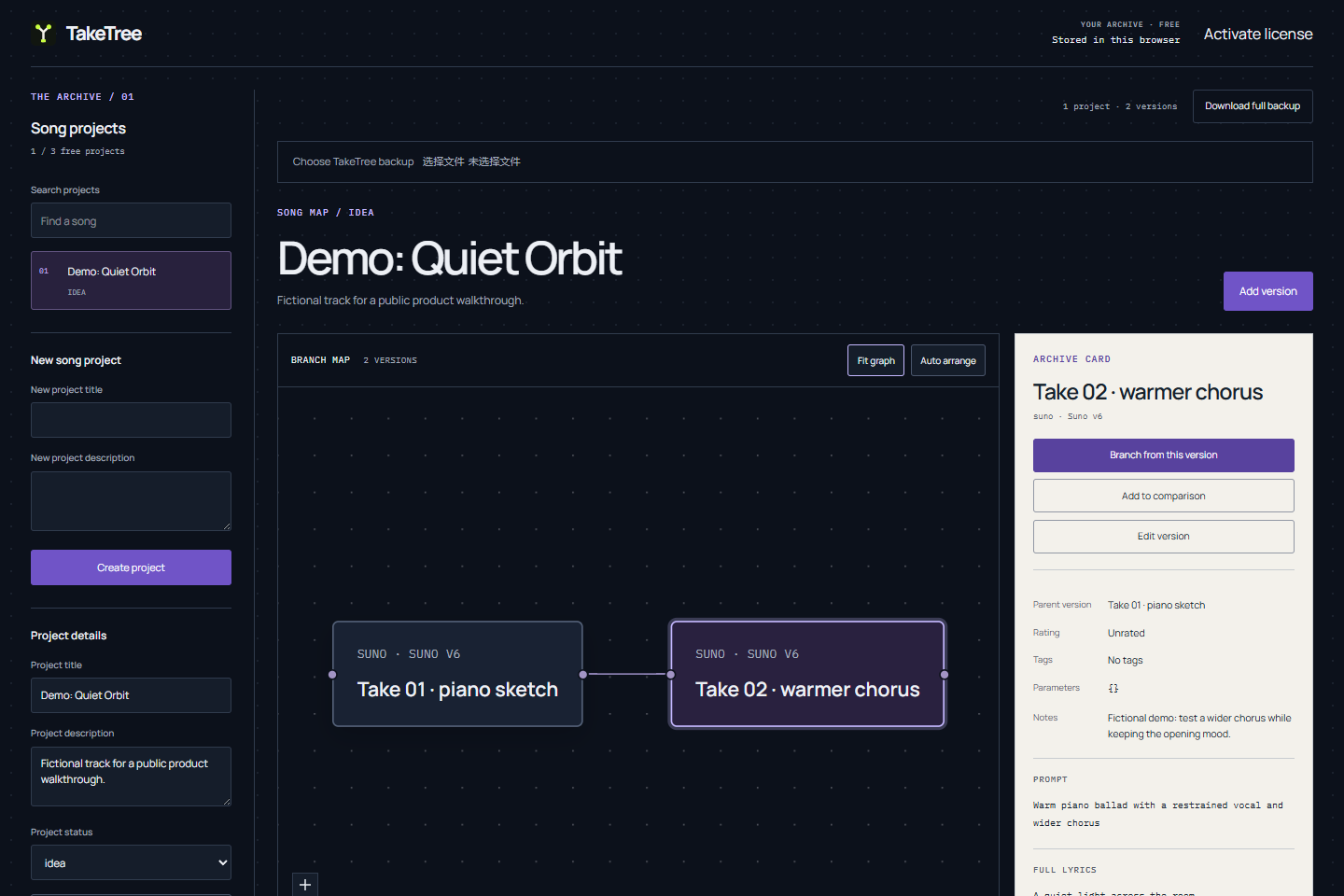
3. Branch when you change something
When you regenerate or revise a take, branch from the version that inspired it. Save the new prompt or lyric text and write one sentence about what you were trying to improve. The parent connection lets you follow the path back later.
4. Compare, then keep the useful parts
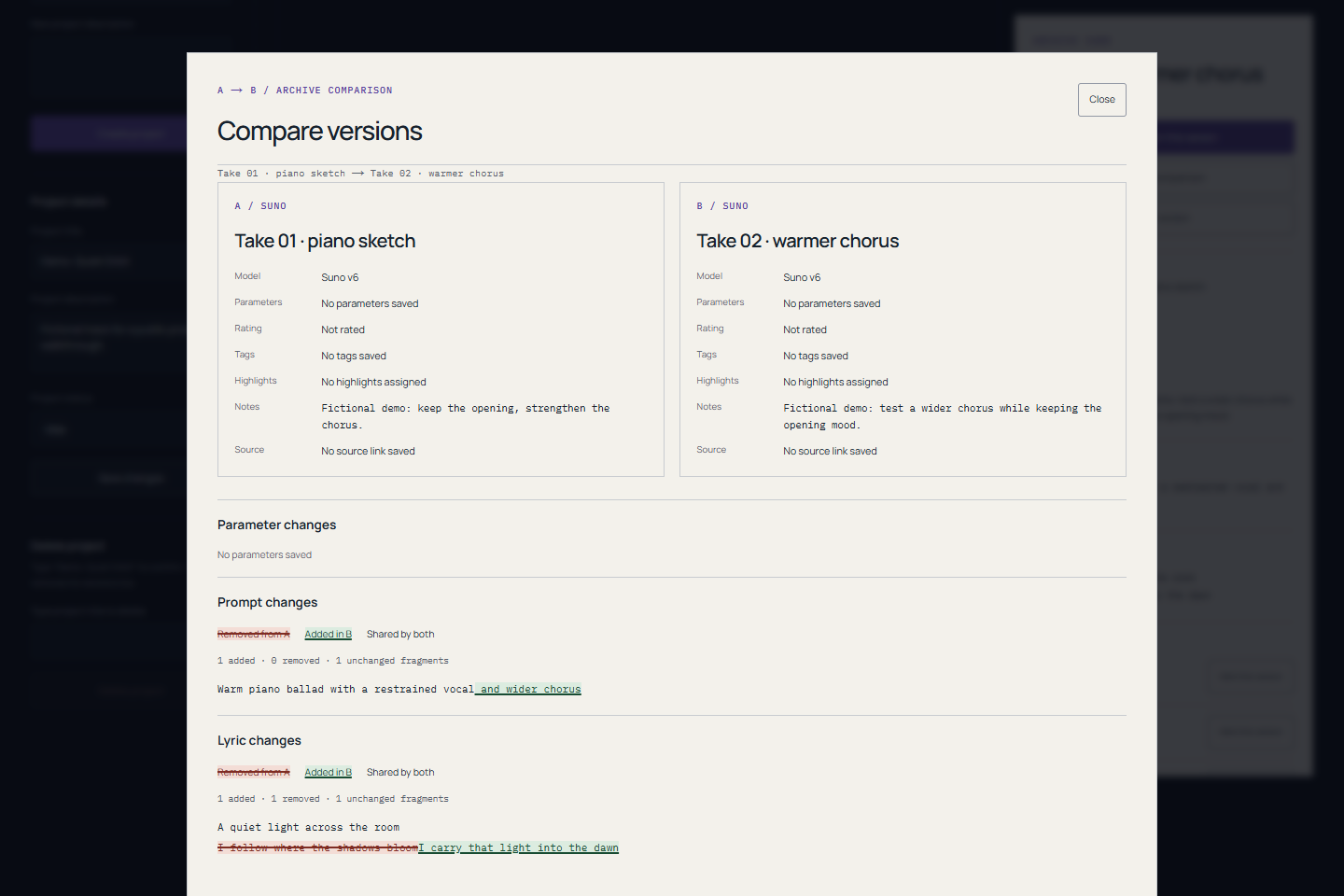
Choose two versions and open Compare. Review prompt and lyric differences alongside the version details. Mark highlights such as the best vocal or chorus, and choose a current master when one take becomes your working version. These labels are your decisions, not a score generated by TakeTree.
5. Back up the archive
Your records live in this browser. Download a full JSON backup before changing devices, clearing browser data or resetting the browser. A license activation does not restore creative records.
Capture the current take first. Add the next branch only after you know what changed.
Open TakeTree